MetaDefender Drive v4.4.10 provides administrators with greater control and visibility via My OPSWAT™ Central Management. This release enables administrators to manage additional MetaDefender Drive preferences, including In-Session scans, MetaDefender Managed File Transfer integration, and the Centralized Scanning Profile.
Manage More MetaDefender Drive Preferences from My OPSWAT Central Management
This release makes more existing preference settings available through My OPSWAT Central Management. This helps administrators manage device configuration from one place.
This includes existing settings for:
- In-Session Scanning
- OPSWAT Managed File Transfer integration
- Központi szkennelési profil
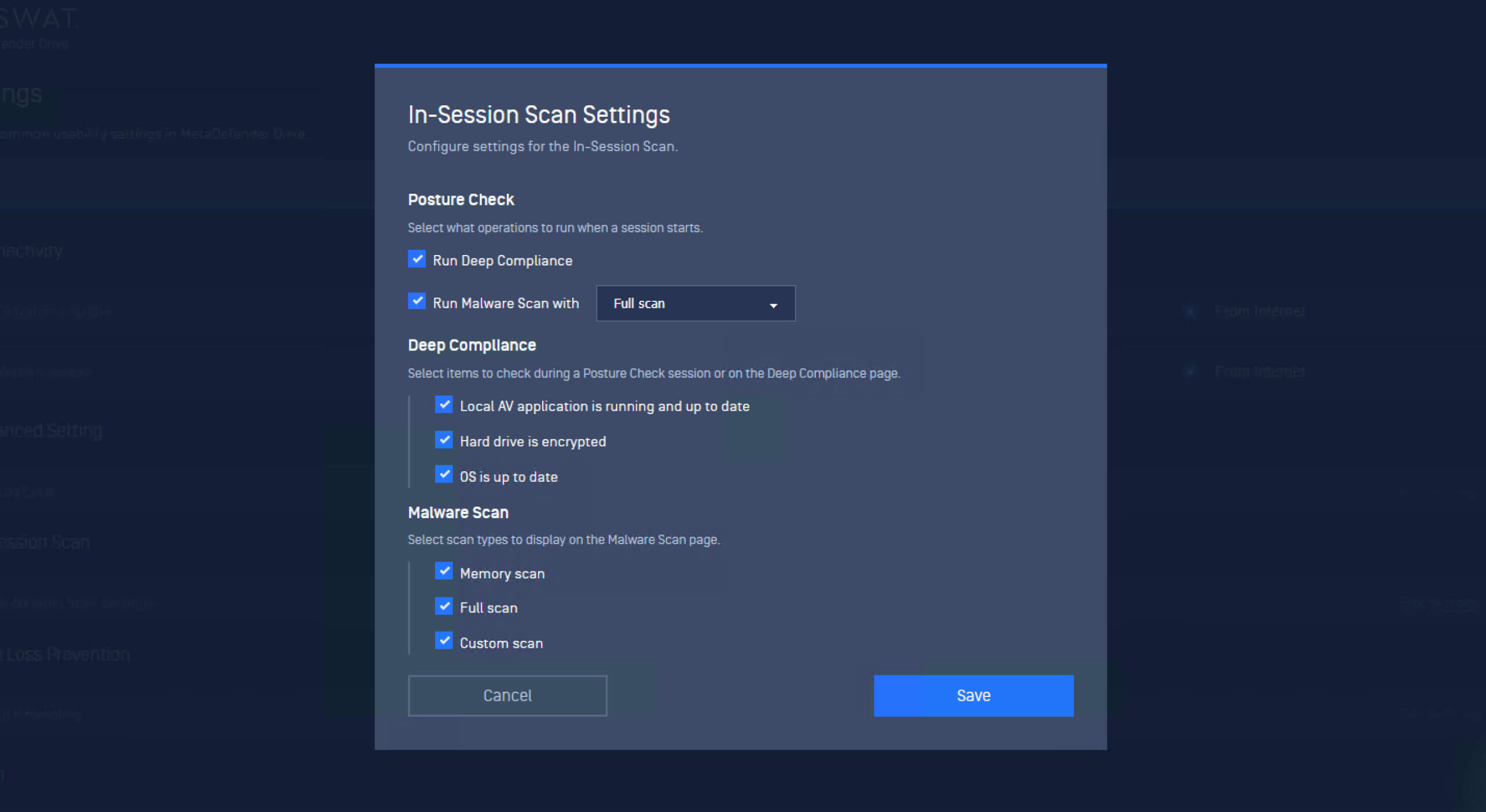
Administrators can manage In-Session scanning settings that define how Posture Check, Deep Compliance, and the following Malware Scan operate. These settings already exist in MetaDefender Drive and can now be managed remotely through My OPSWAT Central Management.
Gain Deeper Device Inventory Visibility During In-Session Scans
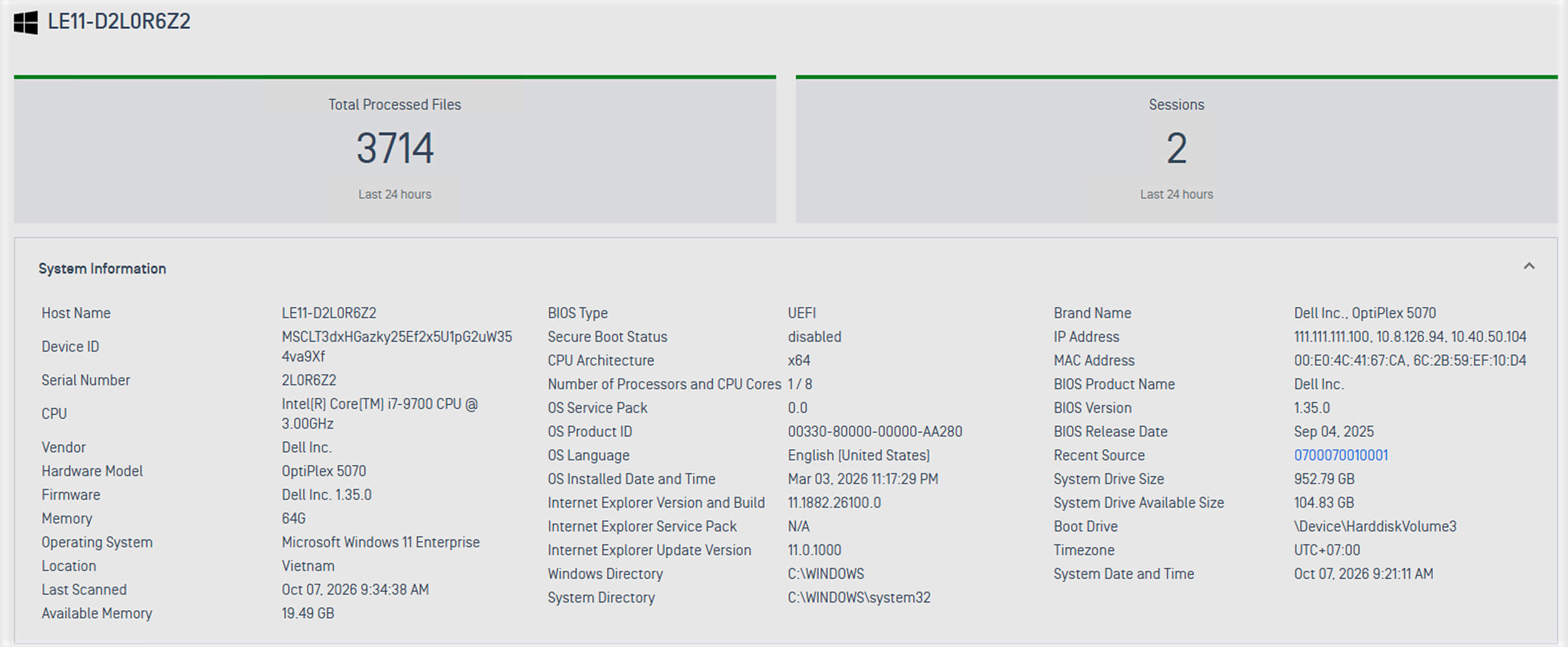
MetaDefender Drive v4.4.10 adds more hardware, firmware, and system information to device inventory collected during In-Session scans.
The collected information now includes:
Device identity
- Device name
- Gyártó
- Modell
- Serial number
- Unique machine ID
- Logged-in user
- Scan time
Hardware
- CPU model
- Total memory
- BIOS vendor and version
Operating system
- OS name
- OS version
- OS architecture
Hálózat
- IP-címek
- MAC addresses
- Network shares
Attached disks
- Model and display name
- Serial number and disk ID
- Capacity and free space
- Connection type
- Media type
- Health status
- Partitions
Software
- Installed applications
- Startup programs
Accounts & permissions
- Local user accounts
- Local user groups
This information gives security teams a more complete view of the scanned devices. It provides additional context for asset visibility, hardware assessment, and compliance assessment.
View Collected Device Information in My OPSWAT Central Management
Once scan reports are synchronized, administrators can review the collected device information directly from My OPSWAT Central Management. This gives security teams centralized access to hardware, firmware, and application information collected during In-Session scans.
From the management console, navigate to Solution → Portable Malware Scanning → Dashboard → Scanned Host. Select a scanned host to view the collected details under System Information.
Manage Centralized Scanning Profile from My OPSWAT Central Management
MetaDefender Drive v4.4.10 also expands management of Centralized Scanning Profile settings via My OPSWAT Central Management. Administrators can now perform key profile management tasks directly from the management console. They can enroll or unenroll a MetaDefender Drive, designate an approver, and generate the security code required to authorize restricted configuration changes.
Enroll the Centralized Scanning Profile from My OPSWAT Central Management
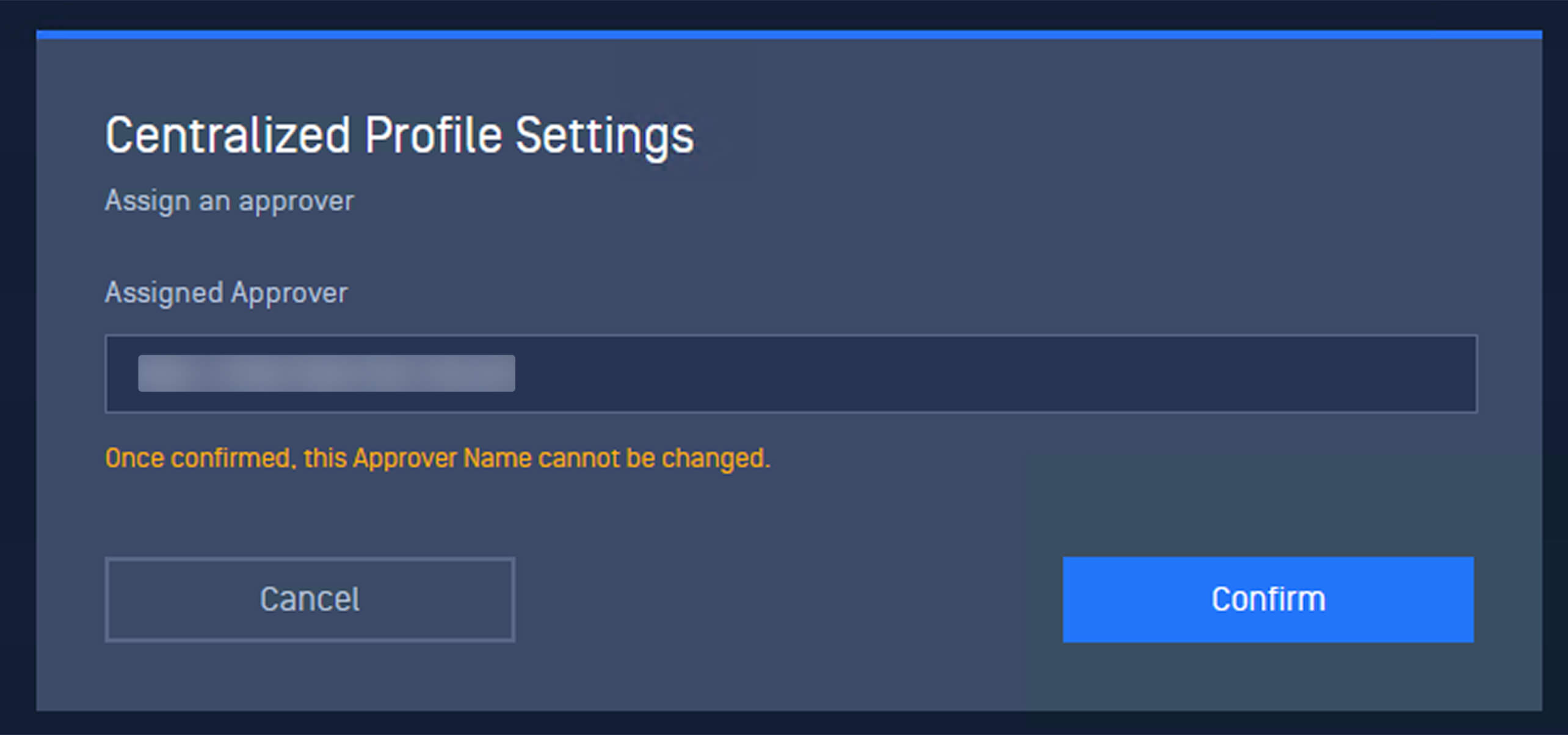
A MetaDefender Drive device must already be enrolled in My OPSWAT Central Management before its Centralized Scanning Profile can be configured from the management console. After enrollment, administrators can open the MetaDefender Drive settings, access Centralized Profile Settings, assign the approver, and confirm.
Centrally Generate One-Time Passcodes to Authorize Scan Configurations
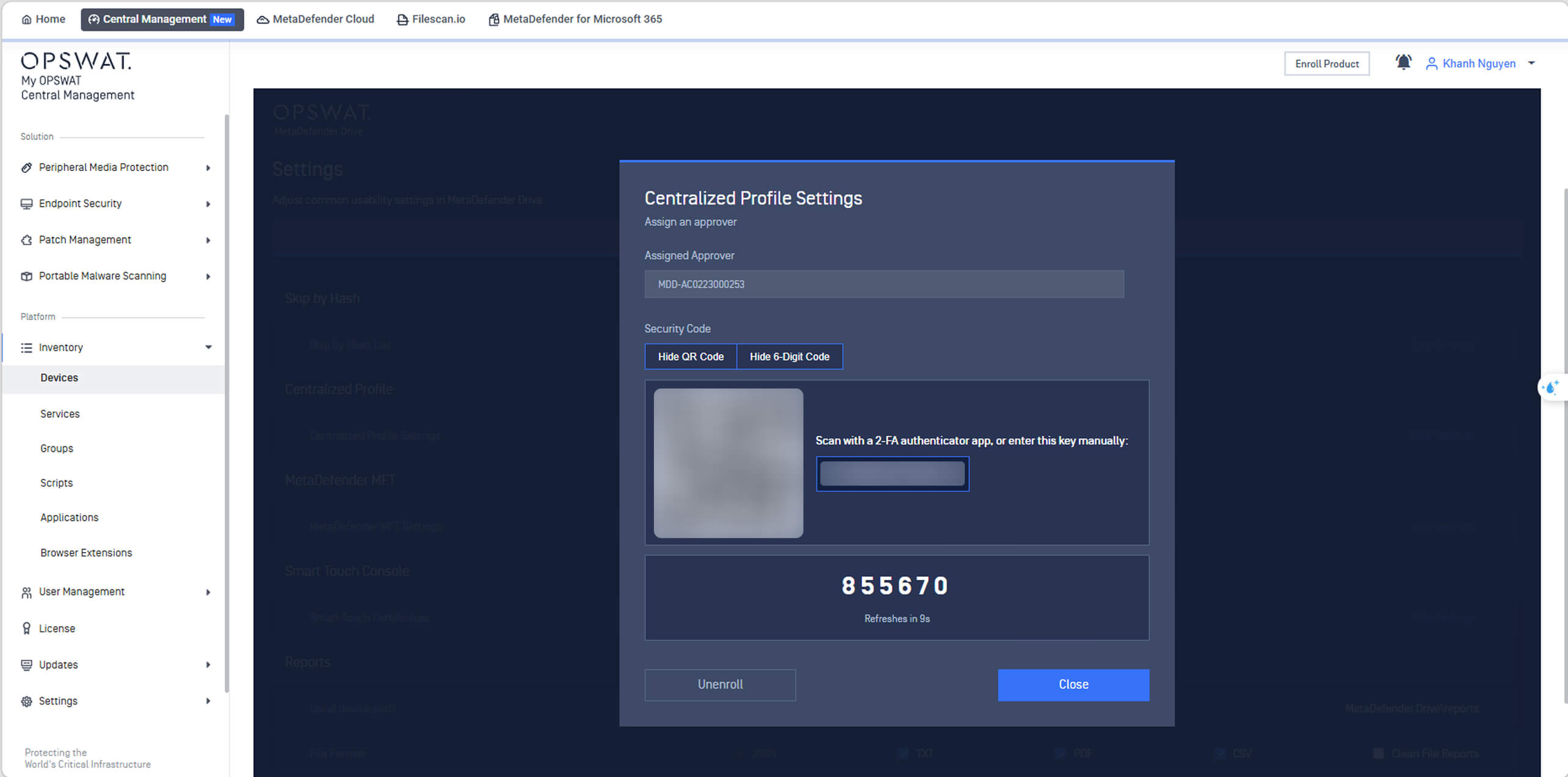
After enrollment, administrators can generate the one-time passcode directly from My OPSWAT Central Management.
The existing authenticator-based workflow remains available. Administrators can still add the MetaDefender Drive to a 2-factor authenticator application using the QR code. At the same time, My OPSWAT Central Management now provides an additional way to receive the security code without opening the authenticator app.
This gives organizations more flexibility when authorizing configuration changes while keeping the approval workflow centrally managed.
Unenroll a Centralized Scanning Profile from My OPSWAT Central Management
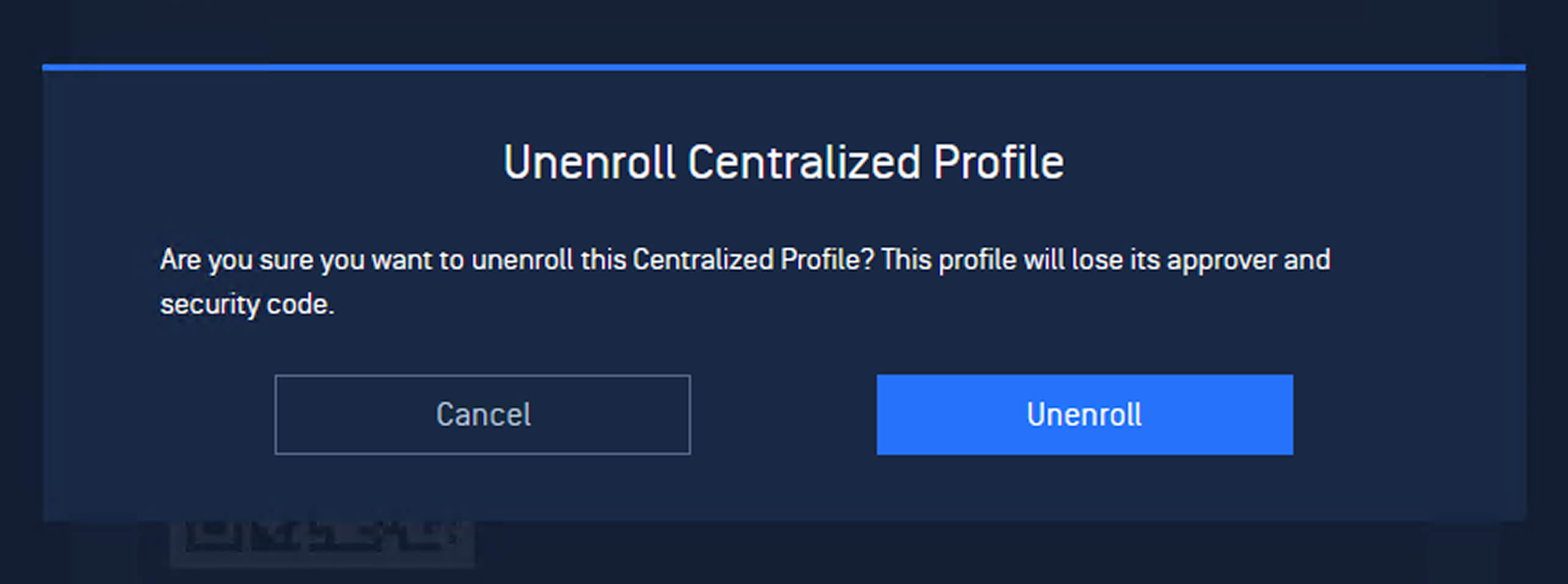
In Centralized Profile Settings within MetaDefender Drive, review the assigned approver and select Unenroll to remove the device from the profile.
Kiadás részletei
Product: MetaDefender Drive
Release Date: October 2, 2026
Kiadási megjegyzések: További információk itt
A MetaDefender és aDrive frissítéséhez töltse le a MetaDefender Drive Toolkit legújabb verzióját, majd kövesse a telepítési utasításokat.